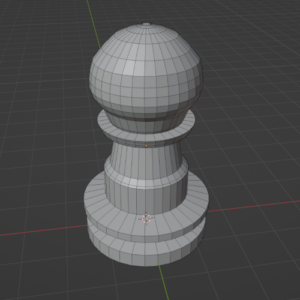
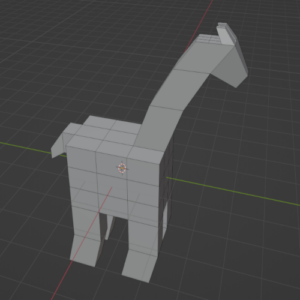
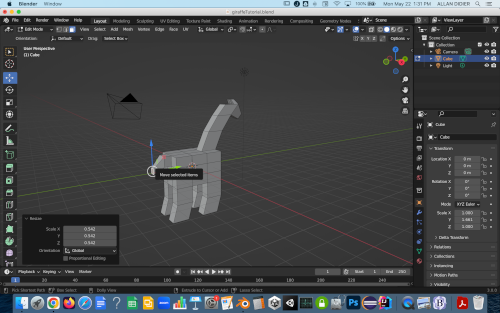
In order to get started modeling objects, we are going to make two practice objects, a chess piece and a simple animal/human. You can follow the tutorials posted to assist with this.
1. Chess Pawn
Create a simple chess piece like a pawn. These objects require using the extrude, scale, rotate, and loop cut tools. You will also practice selecting edges, faces, and loops. Create a pawn for this practice assignment. You can create more complex pieces, like the knight (horse), if you want more of a challenge. The video shows how you can quickly create all the pieces in a chess board. Create more pieces for the Beginner Modeling assignment.
Minutes 3:00-4:30 show you how to create a simple pawn.
2. Simple, Block-Style Human or Animal
Creating simple, block-style humans or animals are very similar. You will learn the subdivide, extrude, and scale tools. For a human, you extrude 2 legs, 2 arms, a neck and a head out of a subdivided cube. For an animal, you extrude 4 legs, a head and a neck out of the same subdivided cube. The following steps demonstrate how to create a giraffe, but you can easily modify the steps to create a human, dog, cat, or other animal.
Block-Style Giraffe Tutorial
Step 1. Create body
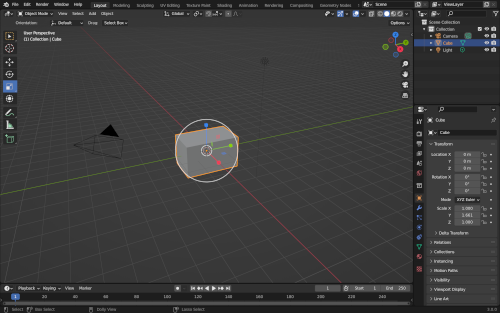
Create a cube and resize it as needed for the body.
Go into edit mode.
Step 2. Subdivide
Select all the faces in the cube pressing “A” on the keyboard.
Right-Click and choose Subdivide.
Step 3. Subdivide 2x
Open the Subdivide Menu in the bottom left of the screen.
In the “Number of Cuts” section, choose “2”.
If all the faces of the cube are selected it should subdivide all of them.
2 cuts is always a good starting point for basic human/animal shapes.
Step 4. Select Legs
Select the 4 faces on the bottom of the cube where the legs will be. Make sure you are in face select and not edge or vertex select mode (top left of window).
Use a Shift-Click to select multiple faces at once.
You can do this one leg at a time, but to keep the legs symmetrical it is easier to work on them all at once.
Step 5. Extrude Legs
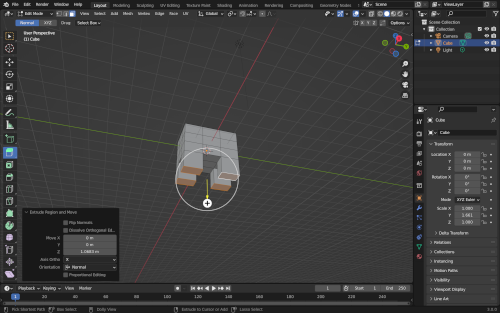
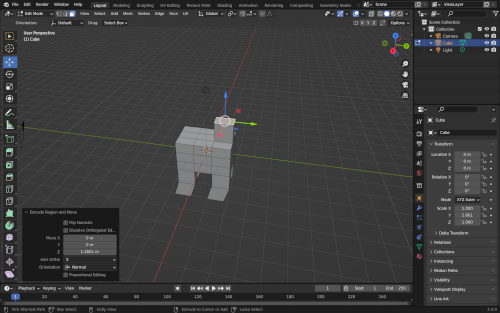
With the legs selected, use the Extrude tool (or press “E” on the keyboard) to extrude the legs.
Stop at the knee.
Step 6. Finish Legs
Extrude again to finish the legs. When modeling creatures, stop extrusions at the joints. This puts mesh points in for the joints so that you can bend the limbs.
I then used the move tool to move the bottom part of the legs back.
If you wanted to add feet, extrude a small amount at the “ankle” to create a foot area. You can then extrude out the front to create a foot.
Step 7. Extrude Neck
Select the face on top and extrude up to start the neck.
Step 8. Finish Neck
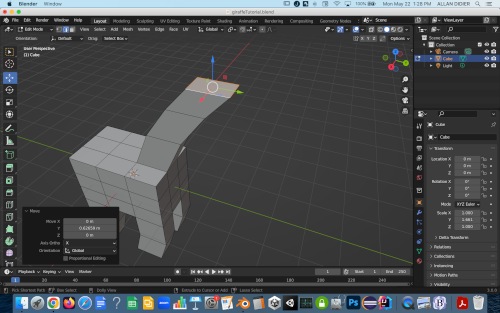
Extruded and moved the faces a few time to create a little bit of a curved neck.
Step 9. Head
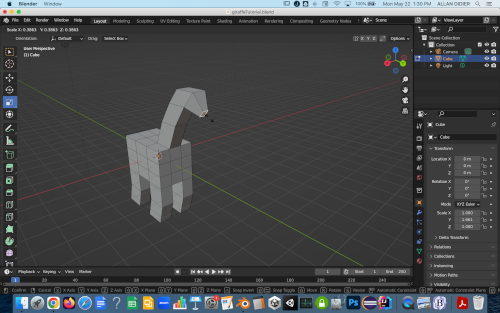
Extrude out from the neck to create a head.
Scale (Scale tool or key “S”) the face down to bring it more to a point.
Step 10. Subdivide Horns
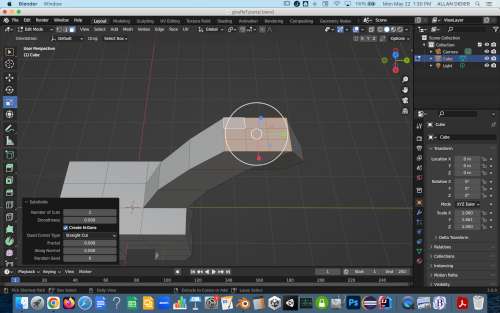
Select the face on top of the head.
Right-click and Subdivide only that face.
Number of cuts = 2.
Step 10. Extrude Horns
Select the horn faces.
Extrude and scale the horns out.
Step 11. Tail
Create a tail by extruding and scaling a face from the back of the cube.